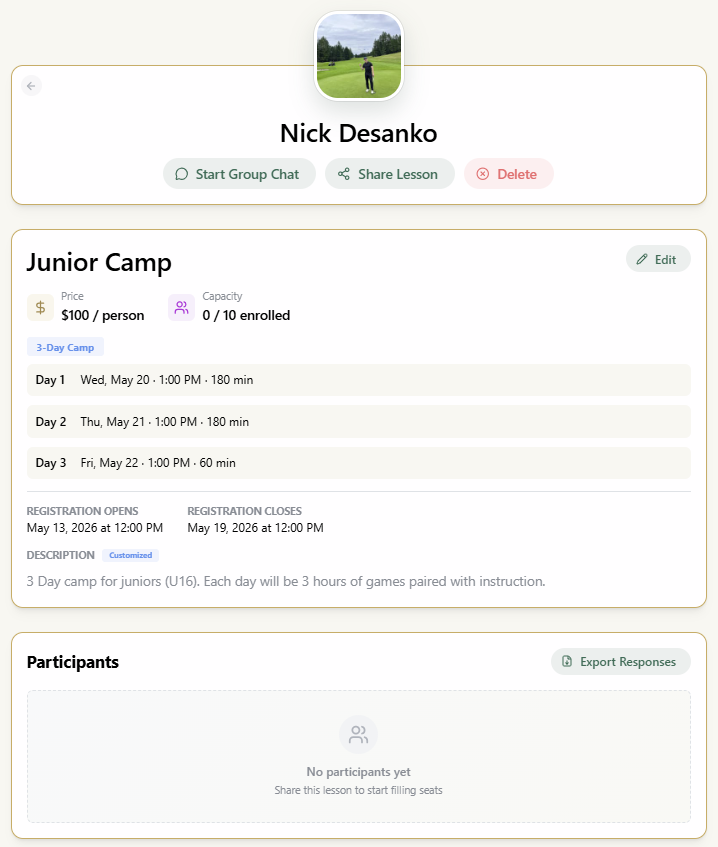
This is how we recommend setting up your SwingMatch account to get the most value from the platform — better organization, time saved, stronger client retention, easier student bookings, and cleaner reporting.
Each section pairs the setting with the reasoning behind it, so you can prioritize the choices that matter most for your business.
Set up your profile
Your profile is your storefront—the first touchpoint for students. Each component serves a functional purpose.
-
Photo & Gallery
- Use a clear headshot as the primary photo. Add gallery images to demonstrate your instruction style.
- Value: The primary photo establishes identity. The gallery provides additional context and life to your profile.
-
Bio
- Two or three sentences covering background, teaching philosophy, and credentials. Feel free to list more about yourself and share what you want your students to know.
- Value: Establishes credibility and improves search engine indexing for local discovery.
-
Specializations
- Tag specific areas of focus such as short game, bunker play, or junior development.
- Value: Differentiates your expertise for those looking specifically for that area of play.
-
Booking Policies
- Configure refund windows and weather protocols to match your workflow. By default we set a 24 hour cancellation policy for refunds.
- Note: Booking policies are not automatically enforced — they are a posted note on your profile that sets expectations up front. You retain full discretion to issue or decline refunds on a case-by-case basis.
- Value: Professional policies protect your schedule and remove the friction of manual refund discussion.
Share your profile & get students
Your profile link automates the administrative burden of pricing, services, and scheduling.
-
Accessing your link: Your URL and QR code are located in profile settings—ready for download.
-
Placement Strategy:
- Club Website: Place your link where visitors seek local instruction.
- Email Signature: Converts every outgoing message into a booking opportunity.
- Social Media: Use your link in your Instagram bio for direct conversion.
- Business Cards: A QR code on the card replaces manual contact entry.
-
On-Site QR Codes
- Displaying a QR code on the range captures students while they practice. They scan and book while intent is high.
Migrating existing students
There are two ways to transition current students from text threads to SwingMatch:
Option A: Share your link. Send a direct message to your student list:
"Hi—I am moving my bookings to a digital link to streamline scheduling. You can view my current availability and book here: [your link]. This saves us the back-and-forth on timing."

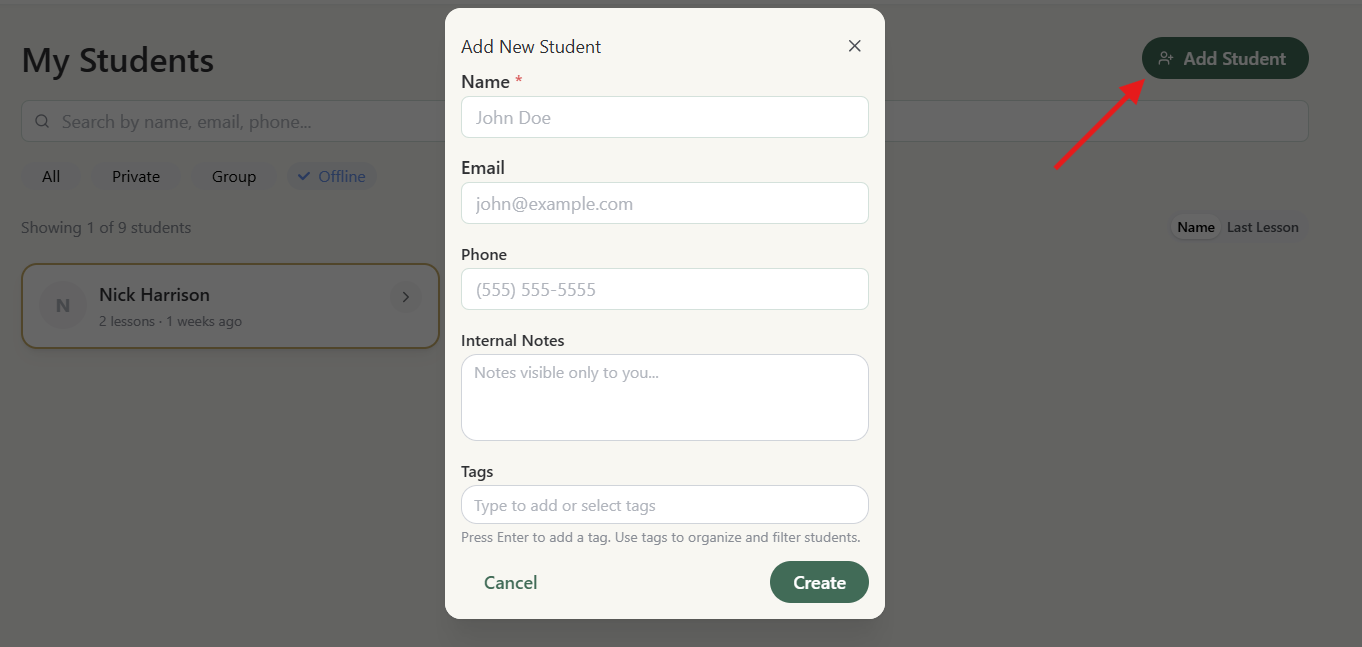
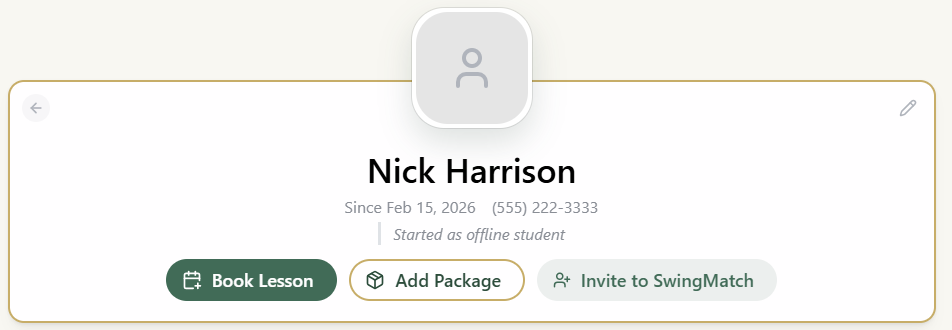
Option B: Manual Invite. Create a profile for the student within the platform and send an invite directly to their phone number. You must have their number populated on their profile to invite them.
Step 1:
Step 2:
Availability
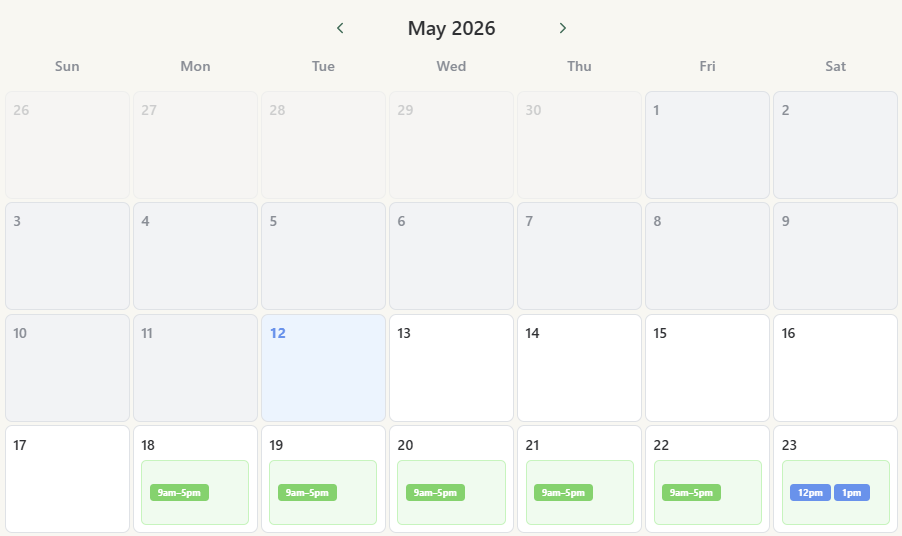
Configure your calendar using the combination that fits your routine. The most critical factor is maintaining an up-to-date schedule.
-
Flexible Setup: Booking Intervals vs. Individual Start Times
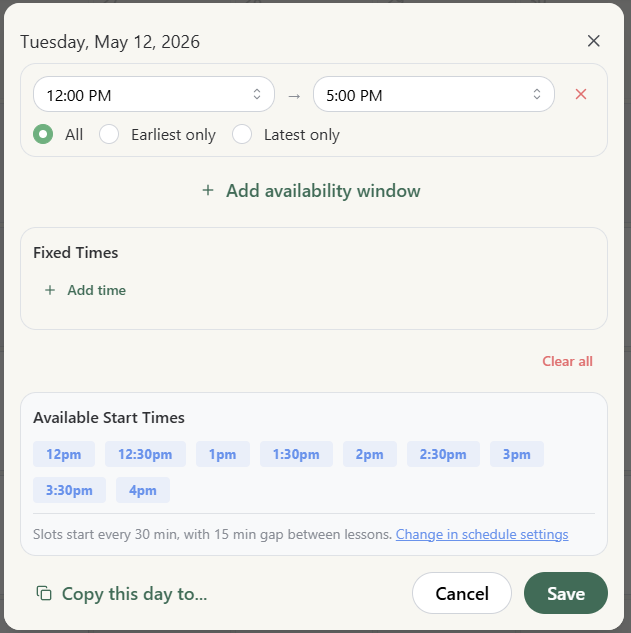
- Booking Intervals: Set a window of availability (e.g., 9am–5pm) and let the system fill slots based on your lesson durations.
- Individual Start Times: Manually set specific start times (e.g., 9:00, 10:30, 1:00).
-
Start-time frequency & buffer time: Start-time frequency is a schedule-level setting — pick on the hour, every 30 minutes, or every 15 minutes. Buffer time (the gap between lessons) is configured in the same place.

Start-time frequency and buffer time are configured in the schedule's Automated Scheduling panel. - You can easily copy and paste daily and weekly availability.
- Value: Intervals offer speed and automation, while individual start times provide maximum control over your daily flow.
-
Date-Specific Availability
- Open blocks for one-off sessions, holiday hours, or weekend clinics.
- Value: Captures extra demand without altering your permanent weekly schedule.
Services, pricing & schedules
Transparency and structure drive higher booking rates.
-
Schedule Name
- By default the name of the schedule will be "Private Instruction", we recommend appending " - Facility Name" to help you easily differentiate your private instruction locations if you teach at several.
-
Granular Services
- Define each lesson type (Adult private, playing lesson, junior group) as a distinct service.
- Value: Enables students to select the exact product they need, reducing inquiry volume.
-
Group & Semi-Private Pricing — Total, Not Per Person
- For group or semi-private lessons, price each service as the total cost for the group, not the per-person rate. Per-person pricing belongs in Camps & Clinics only.
- Example: if you charge $75 per person for groups of 2-3, create two separate services — "Group Lesson (2 people) — $150" and "Group Lesson (3 people) — $225" — instead of one "Group of 2-3" service at $75 with a "price is per person" note.
- Value: Private-instruction schedules don't ask the booker how many people are attending — one student books and pays the full amount on the spot. A per-person price on a group service means the booker only pays for one seat, and you're left chasing the difference manually (or worse, eating it).
-
Package Incentives
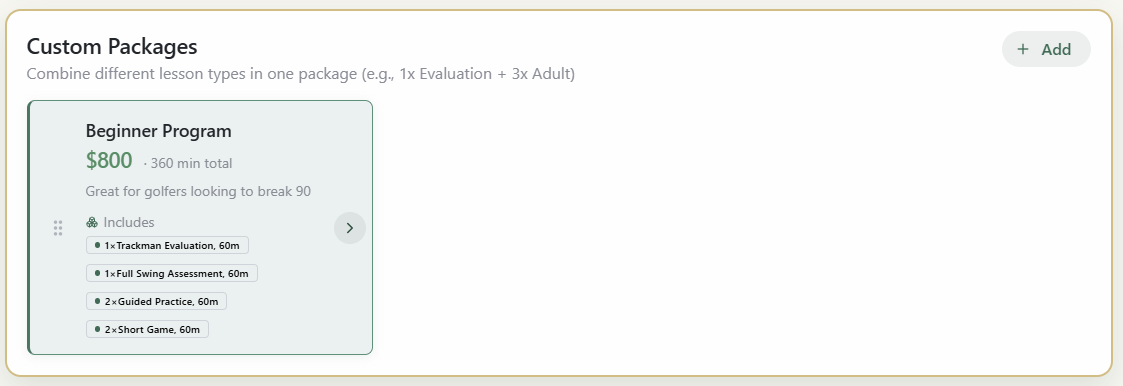
- Highlight per-lesson savings in multi-session bundles. Use custom packages (Pro) to market your programs (e.g. Breaking 90 Bundle).
- Value: Packages convert one-off customers into long-term students.
-
Multi-Location Management
- Apply unique schedules and pricing for different facilities. Click create + Add Schedule from the Schedules tab to create pricing at a new location with its own specific availability, service offering and schedule settings.
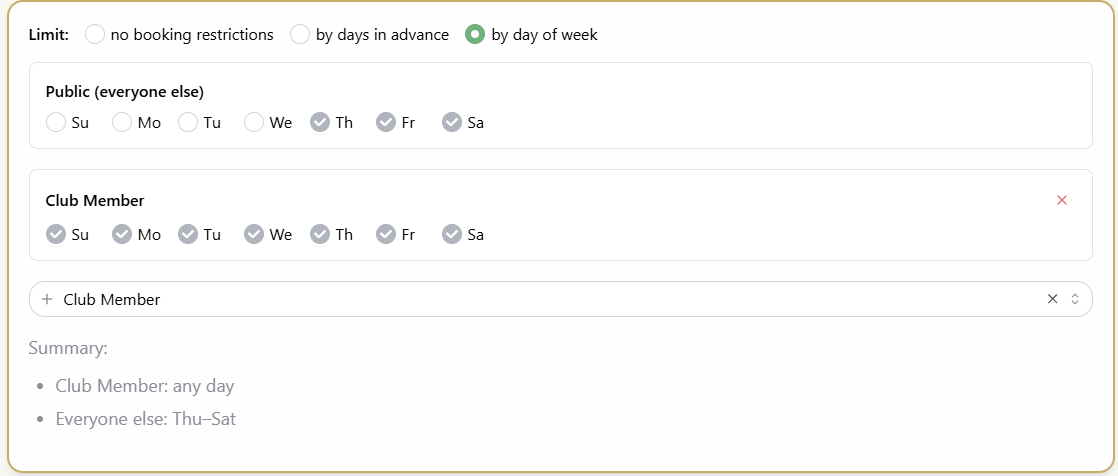
- Value: Accounts for differing overhead and client expectations across locations automatically. Use booking priority features to filter who can book what schedule and when.
Camps & clinics (Pro)
Group instruction offers high efficiency. Structure these for maximum ROI.
- Camps: Planned in advance, often Multi-day events
- Clinics: Single day/ time events, (e.g. Monday Short Game Clinic)
- Sharing: Share the booking link or QR code for the camp or clinic directly, great for posters or direct web access.
- Engagement Tools: Use the group chat to send arrival instructions, updates, group follow ups.